Aspect ratio describes the proportional relationship between an image’s width and height. It affects how much of a scene can fit into the frame, where a subject can be placed and how much space remains for text or other design elements. Choosing a ratio before writing the prompt helps you describe a composition that suits its final use.
Understand common formats
- 1:1 square: balanced and useful for avatars, tiles and many social feed layouts.
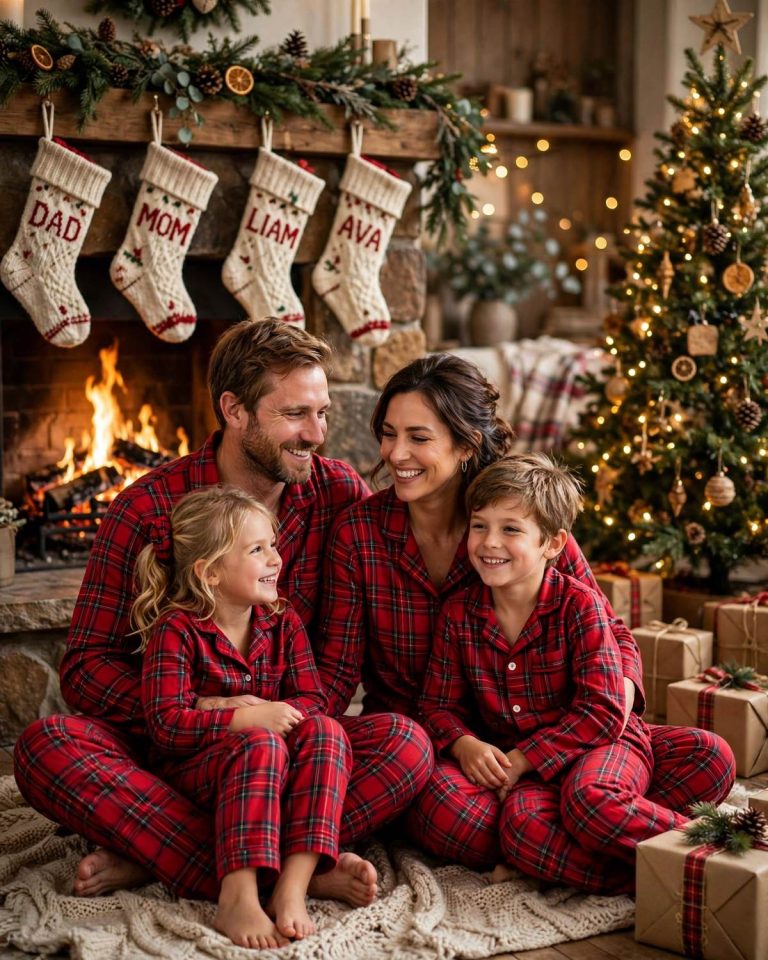
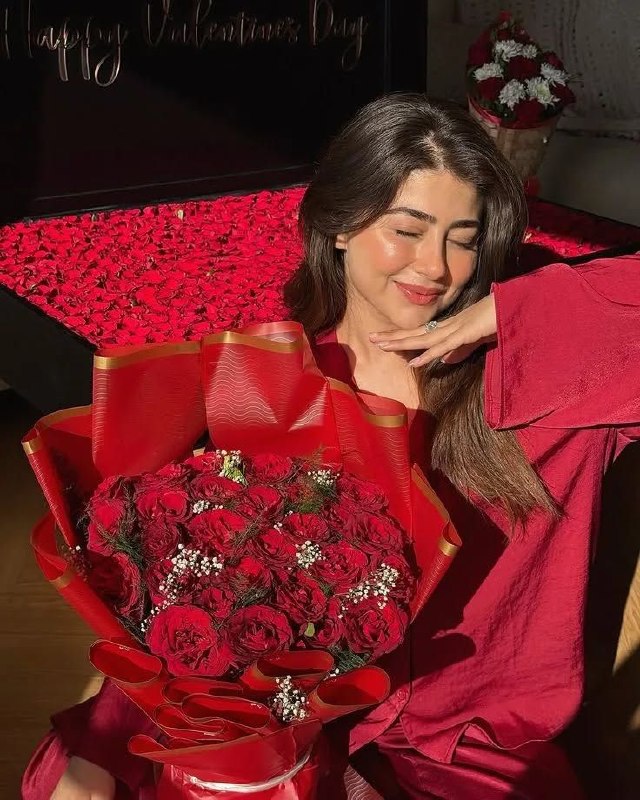
- 4:5 portrait: a taller feed-oriented composition that gives a subject more vertical room.
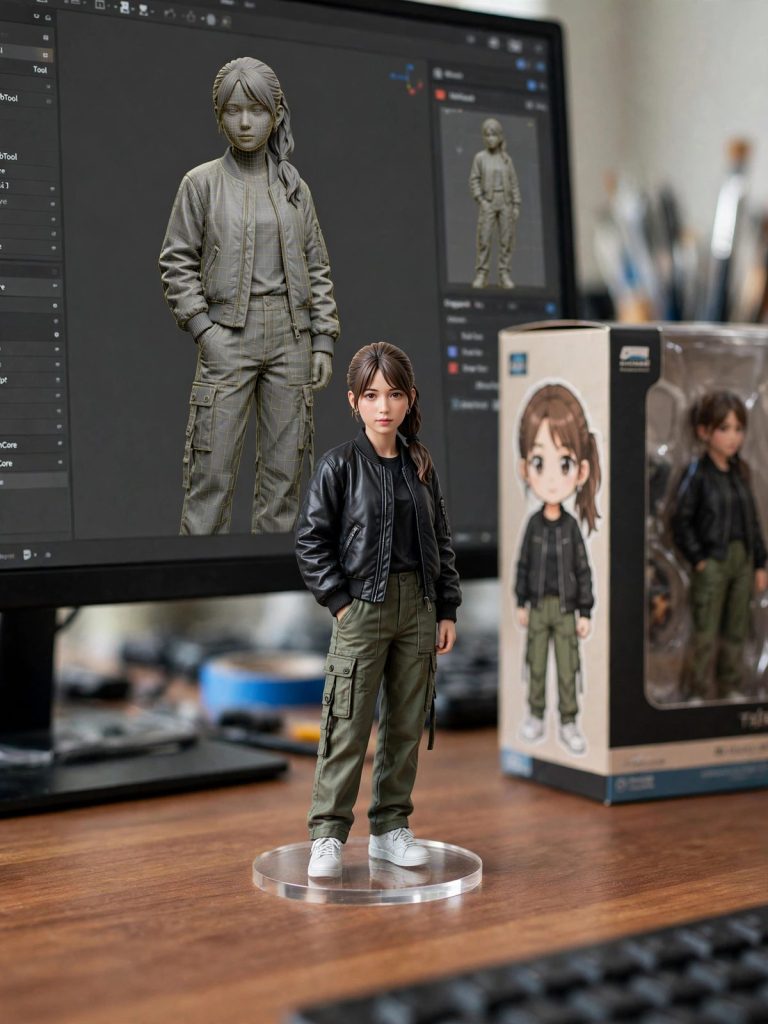
- 3:4 portrait: useful for vertical portraits and editorial layouts.
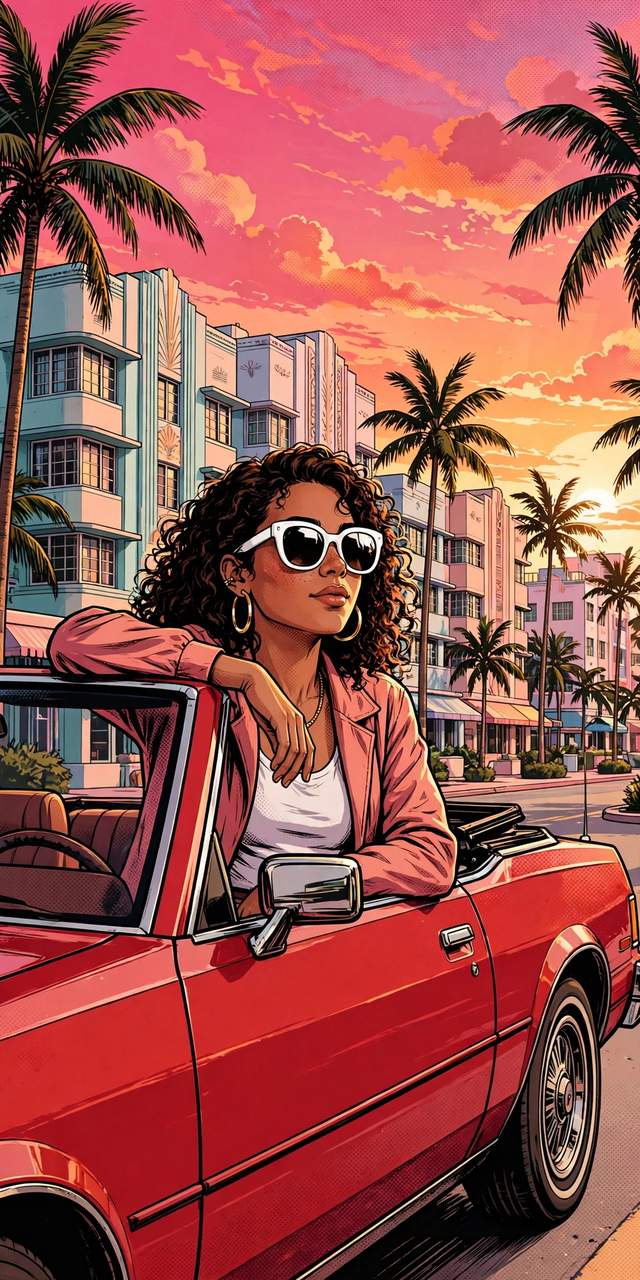
- 9:16 vertical: designed for story, short-video and full-screen mobile layouts.
- 3:2 landscape: a familiar photographic proportion for scenes and product compositions.
- 16:9 landscape: useful for video thumbnails, banners and wide editorial visuals.
Availability varies by platform. Some models offer presets, some allow custom dimensions and some crop or resize after generation. Check the actual output controls before selecting a final format.
Choose a ratio based on the destination
A vertical fashion portrait needs room above the head and below the feet if full-body framing is required. A wide thumbnail needs a clear focal point that remains recognisable at small size. A square product tile benefits from a centred object and enough margin around the edges. The format should support the image’s purpose rather than being selected randomly. A wide thumbnail that must stay readable at small size also benefits from the realism cues in make AI images look more photorealistic.
Aspect ratio is not the same as resolution
A 16:9 image can be produced at many different pixel dimensions. Aspect ratio tells you the shape of the frame; resolution tells you the number of pixels. Upscaling changes pixel dimensions but does not automatically improve anatomy, text accuracy or object detail.
Describe subject placement
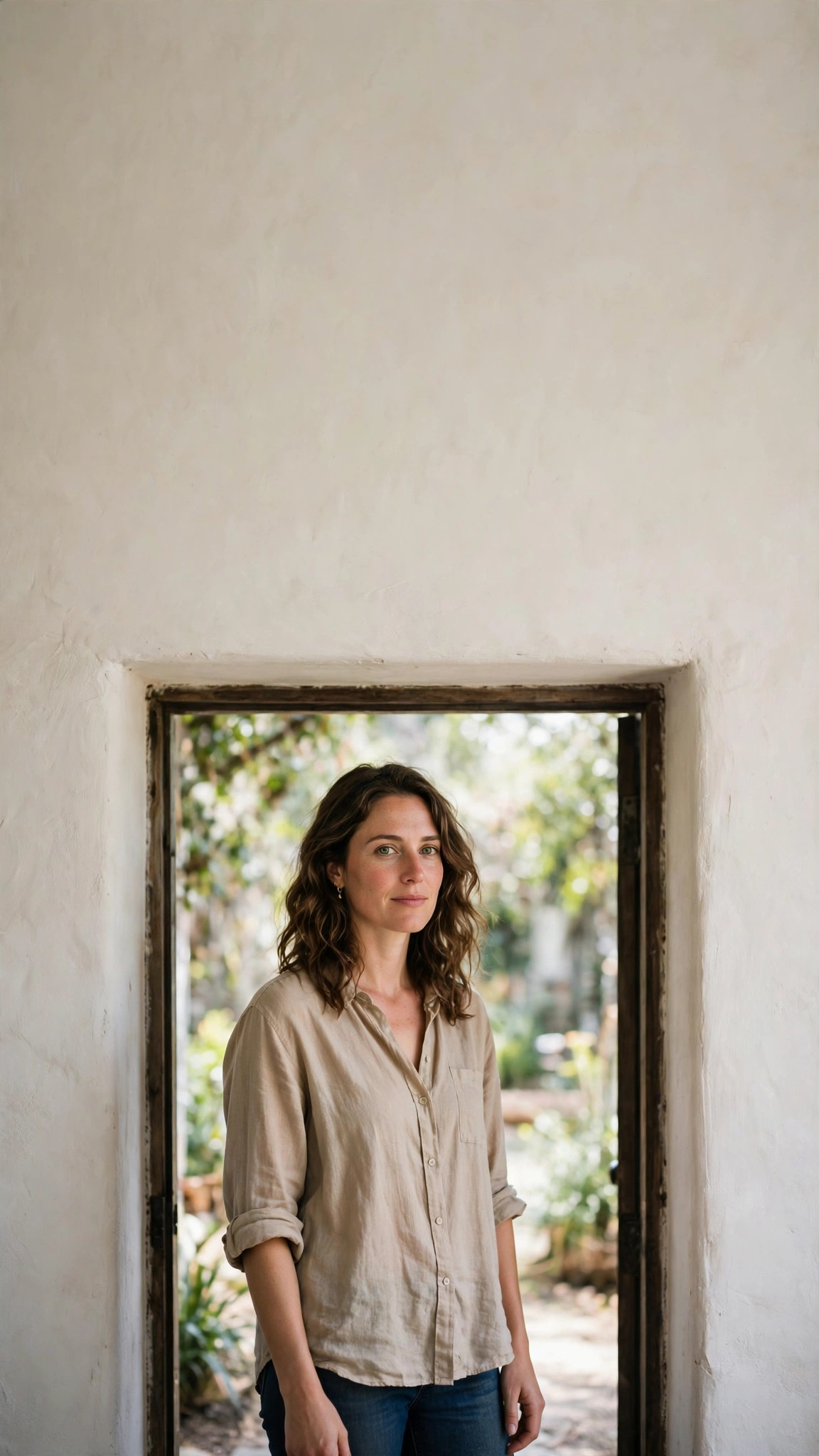
Useful composition instructions include centred subject, rule-of-thirds placement, left or right alignment, close crop, full-body framing and negative space. If the image will carry a headline, state where the clear space should be. Do not place essential details exactly against the edge where they may be cropped in the final design.
Prompt template for a vertical portrait
[Adult subject] in [setting], [pose and expression]. Full-body vertical portrait with space above the head and around the feet, subject centred slightly to the right, uncluttered background. [Lighting and style]. Portrait aspect ratio 4:5, where supported.Prompt template for a wide thumbnail
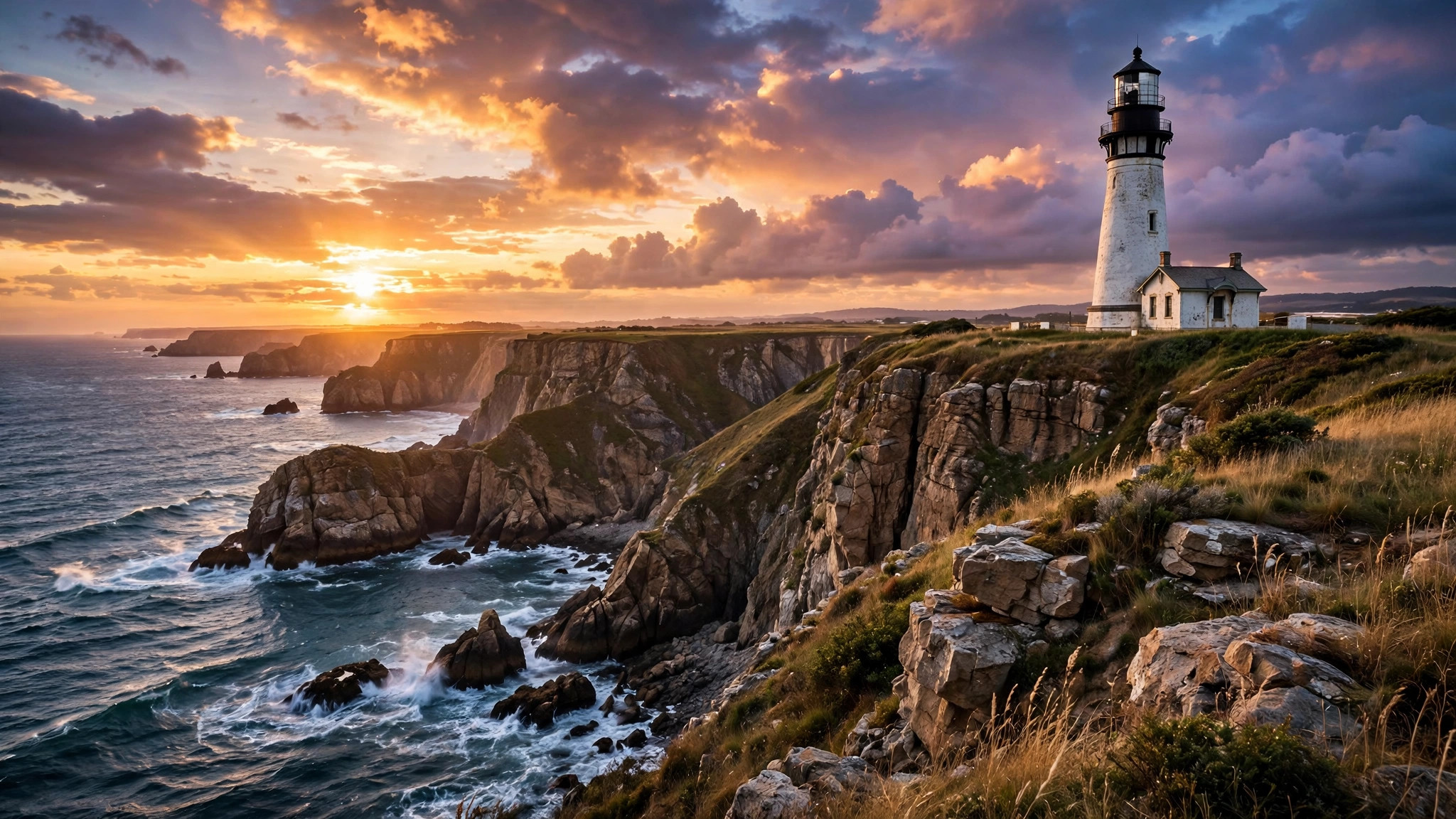
[Main subject or concept] clearly visible on the [left / right] side of a wide landscape frame. Keep the opposite side simple with clean negative space for a headline to be added later. Strong readable silhouette, controlled contrast, uncluttered background, 16:9 composition, where supported. Do not generate critical headline text.Plan for cropping and safe areas
Platforms may display different crops in previews, cards and mobile views. Keep faces, product edges and important objects away from the extreme border. When possible, generate a little extra breathing room and check the image in the final placement. A composition that looks perfect in the generation preview may crop poorly in a social feed.
Text and graphic overlays
Many image models are not reliable at rendering exact text. For thumbnails, posters and promotional graphics, generate the photographic background first and add the headline, logo and call-to-action in a design editor. This provides better control over spelling, font, contrast and accessibility. This is the same approach used in our AI image prompts for social media workflow.
Common mistakes
Choosing a portrait ratio but asking for a wide group scene can make the crop crowded. Asking for a full-body subject without enough vertical space can cut off feet. Asking for a large headline and many props can overload the composition. Resolve these conflicts by deciding what the viewer must notice first.
Final selection checklist
Confirm the destination, ratio, focal point, crop, safe margins, text space and final pixel dimensions. Export in the size recommended by the publishing platform, and inspect the result at the size readers will actually see. Good composition starts before generation and finishes with a real-world crop check. If the prompt itself needs work first, see how to write AI image prompts.
Worked example: a 9:16 story image with safe space for text
A story image usually carries a headline or a call to action, so the composition must leave clear space instead of filling the whole frame with the subject. This prompt places the subject low in the frame and keeps the upper third simple, which leaves room for text without covering a face.
A young woman standing on a city rooftop at golden hour, seen from the waist up, positioned in the lower half of a tall vertical frame.
Keep the upper third of the frame as a plain warm sky with soft clouds and no objects, for text to be added later.
Subject on the right side of the frame, looking toward the left, natural expression.
Soft warm light, gentle shadow, muted city skyline in the far background.
Vertical 9:16 composition, where supported. Do not generate headline text.
After generation, place the image in the actual story layout and check the headline area. If the sky is busy or a building crosses the text zone, regenerate with simpler background wording rather than cropping the subject. The safe area matters more than the background detail in this format.
Worked example: a 16:9 thumbnail that survives small sizes
A thumbnail is often seen at a very small size, so the composition needs one large, readable subject and a simple opposite side. This prompt puts the subject on one side and leaves the other side empty for a headline, which is the same rule used for most video thumbnails.
A ceramic teapot pouring tea into a cup, large in the frame on the left side of a wide landscape image.
Keep the right side simple with a plain warm background and clean negative space for a headline.
Strong readable silhouette, steam rising in a clear curve, controlled contrast, no small text or clutter.
Wide 16:9 composition, where supported. Do not generate headline text.
Test the thumbnail at the size viewers will actually see, not at full size. If the teapot becomes a small dark shape, move it closer, increase its size in the prompt, or simplify the background further. A thumbnail that is clear at 120 pixels wide will usually work at every larger size too.
Common aspect ratio mistakes
Choosing the ratio last: generating a square image and then cropping it to 9:16 removes the top or bottom of the subject. Choose the ratio first and describe the composition for that shape.
Asking for too much in a tall frame: a full group scene, a landscape and a headline rarely fit in a 9:16 frame. Decide on one subject and one focal point, and let the rest of the frame stay simple.
Putting key details at the edge: faces, product edges and hands placed against the border are the first things a platform crop removes. Keep important details at least a small margin inside the frame.
Confusing ratio with resolution: requesting 4K does not change the shape of the frame, and upscaling does not fix a bad crop. Set the ratio, then export at the pixel size the platform recommends.
Generating the text in the image: models still misspell words and distort letters. Generate the background in the right ratio and add the headline in a design editor, where spelling and contrast are fully under your control.
Aspect ratio checklist
- Confirm the destination platform and its recommended ratio first.
- State the ratio in the prompt, where the platform supports it.
- Place one focal point and keep the rest of the frame simple.
- Leave safe margins around faces, products and hands.
- Reserve clear negative space where text will be added later.
- Check the image in the final placement, at the real display size.
- Export at the pixel dimensions the platform recommends.
- Re-crop from the generated image rather than regenerating for every size.
Related guides
See make AI images look more photorealistic, our AI image prompts for social media workflow, and the guide on how to write AI image prompts.